
What is the new Macro Features from the release of Access 2010Computer TrainingUpdated on Dec 23, 2017 View more like this | Visit United Kingdom, UN | Contact Online Training |

In previous versions of Access, many usually used functions could not be executed without writing VBA code. With the release of Access 2010, new features and macro actions have been added to help remove the need for code. This makes it less demanding to add functionality to your database and helps make it more secure.
Embedded macros: You can now embed macros in any of the events given by a form, report, or control. An embedded macro is not displayed in the Navigation Pane; it becomes part of the form, report, or control in which it was created. If you make a duplicate of a form, report, or control that has embedded macros, the macros are also present in the duplicate.
Increased security: When the Show All Actions button is not highlighted in the Macro Builder, the only macro actions and RunCommand arguments that are accessible for usage are those that do not require trusted status to execute. A macro built with these actions will execute even when the database is in disabled mode. Databases that contain macro actions that are not on the trusted list need to be explicitly granted trusted status.
Error handling and debugging: Access 2010 provides new macro actions, which include OnError and ClearMacroError, that enable you to run certain actions when errors occur while your macro is running. Moreover, the new SingleStep macro action lets you enter single-step mode at any point in your macro, so that you can see how your macro performs one action at a time.
Temporary variables: Three new macro actions — SetTempVar, RemoveTempVar, and RemoveAllTempVars — let you make and use temporary variables in your macros. You can use these in conditional expressions to control running macros, or to pass data to and from reports or forms, or for any other purpose that needs a temporary storage place for a value.
Create a macro
As of Access 2010, a macro or macro group can be held in a macro object, or a macro can be inserted into any event property of a form, report, or control. Embedded macros become part of the object or control in which they are inserted. Standalone macros are viewable in the Navigation Pane, under Macros, but embedded macros are not.
Macro Designer features
Access 2010 (including the later versions too) has a new Macro Designer that allows effortless creation of complex macros at the same time decreasing coding errors.
The designer is used to build the list of actions that you want to execute when the macro runs.
To display the Macro Designer, click Macro on the Create tab.
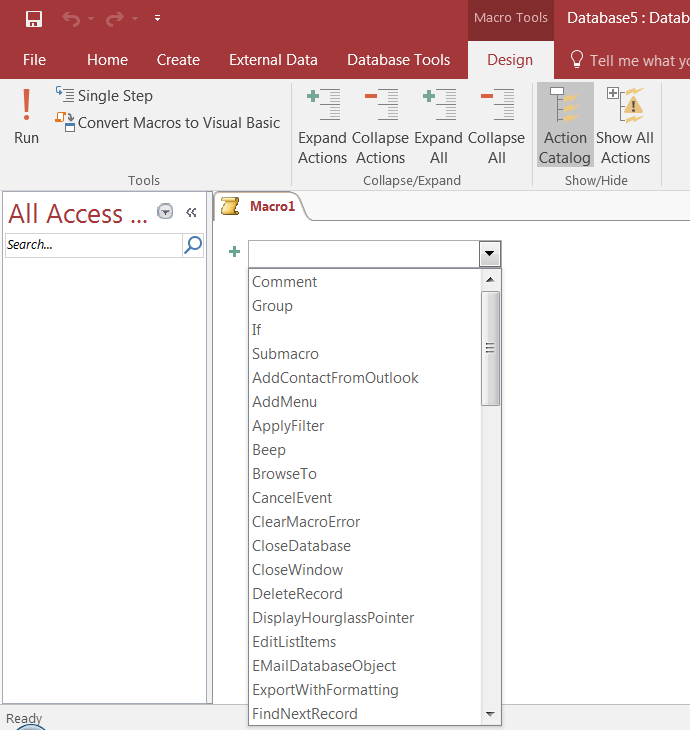
When you first open the designer, Access will display a drop-down list from which you select an action.
Embedded macros: You can now embed macros in any of the events given by a form, report, or control. An embedded macro is not displayed in the Navigation Pane; it becomes part of the form, report, or control in which it was created. If you make a duplicate of a form, report, or control that has embedded macros, the macros are also present in the duplicate.
Increased security: When the Show All Actions button is not highlighted in the Macro Builder, the only macro actions and RunCommand arguments that are accessible for usage are those that do not require trusted status to execute. A macro built with these actions will execute even when the database is in disabled mode. Databases that contain macro actions that are not on the trusted list need to be explicitly granted trusted status.
Error handling and debugging: Access 2010 provides new macro actions, which include OnError and ClearMacroError, that enable you to run certain actions when errors occur while your macro is running. Moreover, the new SingleStep macro action lets you enter single-step mode at any point in your macro, so that you can see how your macro performs one action at a time.
Temporary variables: Three new macro actions — SetTempVar, RemoveTempVar, and RemoveAllTempVars — let you make and use temporary variables in your macros. You can use these in conditional expressions to control running macros, or to pass data to and from reports or forms, or for any other purpose that needs a temporary storage place for a value.
Create a macro
As of Access 2010, a macro or macro group can be held in a macro object, or a macro can be inserted into any event property of a form, report, or control. Embedded macros become part of the object or control in which they are inserted. Standalone macros are viewable in the Navigation Pane, under Macros, but embedded macros are not.
Macro Designer features
Access 2010 (including the later versions too) has a new Macro Designer that allows effortless creation of complex macros at the same time decreasing coding errors.
The designer is used to build the list of actions that you want to execute when the macro runs.
To display the Macro Designer, click Macro on the Create tab.
When you first open the designer, Access will display a drop-down list from which you select an action.

What is the new Macro Features from the release of Access 2010
34 Edgwarebury Lane Edgware United Kingdom, UN HA88LW
